
Active customer
Statements and account documents
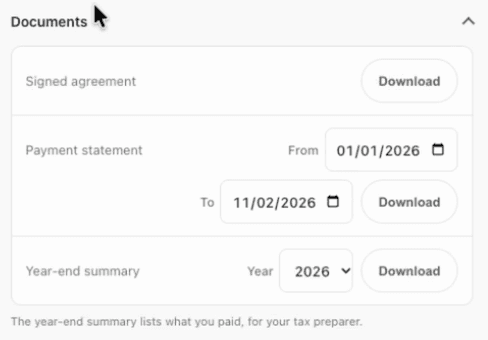
Expand Documents in My LeasePoint, then use the Download button for the document you need. Available documents depend on your account; contact LeasePoint if a copy is not available.
Download your signed agreement
- Open My LeasePoint, confirm the correct account, and expand Documents.
- Select Download beside Signed agreement.
- If the dashboard instead says to email for a copy, contact [email protected].
Download a payment statement
- In Documents, find Payment statement.
- Set the From date and To date for the period you need.
- Select the Download button for Payment statement.
Download a year-end summary
The year-end summary lists what you paid for the selected year, for your tax preparer. Ask your tax preparer how to use it.
- In Documents, find Year-end summary.
- Choose the Year you need.
- Select the Download button for Year-end summary.
If a document does not appear
- Check your browser's downloads list.
- Contact LeasePoint if the document is unavailable or the download still does not work. Include your account number, document type, and the period you need.
- Use your signed agreement for transaction-specific terms.
Example screens
These demonstration screens illustrate the workflow. Labels, fields, and availability may vary by program and production release.

Use the secure experience for your actual information
This guide is general. Your application, option, agreement, requirements, payment obligations, and account status may differ. Signed documents and secure account information control.
Need an account-specific answer?
Contact the right LeasePoint team
Choose a route without posting private application, bank, identity, or account information.