
Active customer
Make a payment
Open My LeasePoint, confirm the account, and select Pay now if it is available. Follow the instructions presented and check the result before treating the payment as complete.

Submitting a payment does not necessarily mean it has settled or that the account balance has updated.
Review and start a payment
- Open My LeasePoint and confirm the account number and business name.
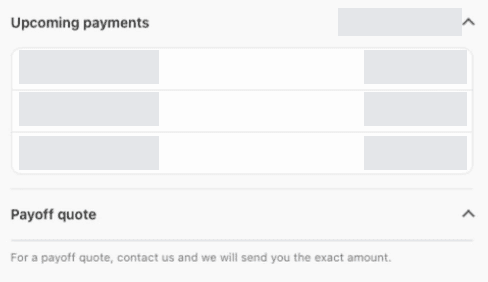
- Review the next payment information and expand Upcoming payments for the listed dates and amounts.
- Select Pay now, if shown, and follow the payment instructions presented.
- Check the result and your account's payment information before trying again if the result is unclear.
If Pay now is not shown
Available actions depend on your account and who services it. If the dashboard identifies another company as your servicer, follow that notice and contact LeasePoint for help with a payment.
Protect against payment fraud
- Verify unexpected changes to payment instructions through an established LeasePoint channel.
- Do not send bank credentials or a one-time code by email or text.
- Contact LeasePoint promptly about an unrecognized, duplicated, returned, or redirected payment.
Example screens
These demonstration screens illustrate the workflow. Labels, fields, and availability may vary by program and production release.

Use the secure experience for your actual information
This guide is general. Your application, option, agreement, requirements, payment obligations, and account status may differ. Signed documents and secure account information control.
Need an account-specific answer?
Contact the right LeasePoint team
Choose a route without posting private application, bank, identity, or account information.